
Reference · 6 min read
Windows icon sizes cheat sheet: every context explained
A Windows .ico is a container. The shell picks the entry closest to what it needs and scales only when it must. Here is what it needs, and where.
01 · The sizes
The sizes and where they show up
At 100 % display scaling. Seven entries cover every place Windows draws an application icon.
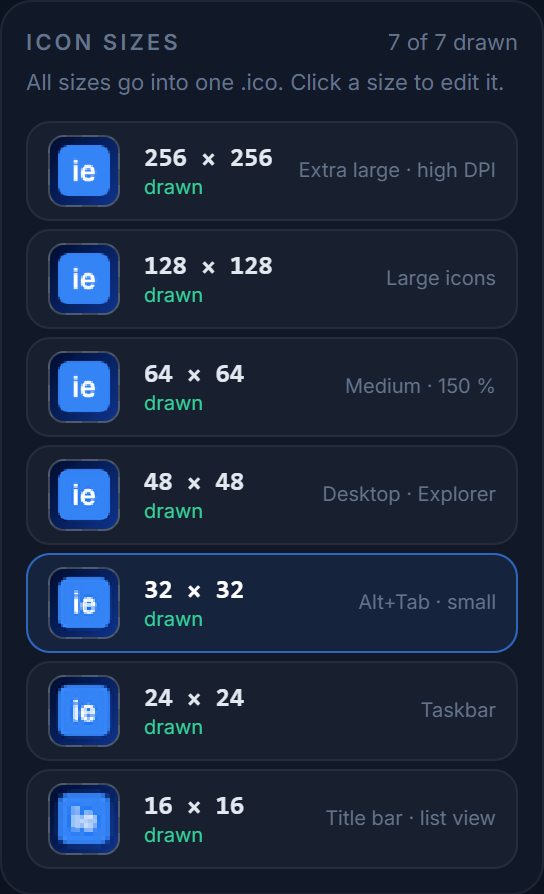
| Size | Where Windows uses it | Priority |
|---|---|---|
| 16×16 | Explorer list/details view, window title bar, taskbar small-icon mode, system tray, browser tabs, Alt+Tab list text rows | Required |
| 24×24 | Taskbar buttons (default), Start menu pinned list at 100 %, jump lists | Required |
| 32×32 | Explorer small icons, Alt+Tab thumbnails, desktop "small icons", taskbar at 125–150 % scaling, Start pinned apps (Win 11) | Required |
| 48×48 | Desktop and Explorer "medium icons" (the default), file-open dialogs, Control Panel | Required |
| 64×64 | Explorer medium icons at 125–150 % scaling, UAC prompt | Recommended |
| 128×128 | Explorer "large icons" at high DPI, Windows 11 Start "all apps" at 200 % | Recommended |
| 256×256 | Explorer "extra large icons", tile/thumbnail views, Properties dialog, any place at 200–300 % scaling | Required |
Windows has never used 20, 40 or 96 px entries from an .ico directly; it scales from a neighbour instead. Including them adds bytes without adding sharpness. The seven sizes above are what IconEditor exports.
02 · Scaling
High-DPI displays
At 150 % scaling, a "16-px" title bar icon is really 24 device pixels, and a "48-px" desktop icon is 72. Windows solves this by picking the next entry up (24 and 64 or 128) and scaling from there, which is why the intermediate sizes matter.
On a 4K monitor at 200 %, the 256 entry is doing most of the work even for "medium" icons — one more reason to draw that one carefully.
03 · Pixels
Colour depth and transparency
- Store every entry as 32-bit BGRA. 8-bit palette entries were for Windows 98 — nothing needs them today.
- The 256 px entry should be PNG-compressed. It is supported since Windows Vista and cuts the file from ~260 KB to a few KB. IconEditor does this automatically; smaller entries stay as classic BMP for compatibility with old resource tools.
- A 1-bit AND mask is still written for each BMP entry. Modern Windows ignores it when alpha is present, but some legacy software reads it.
04 · The web
Favicons and the web
Same file, fewer sizes — plus the PNGs that phones want.
| Use | Size | Format |
|---|---|---|
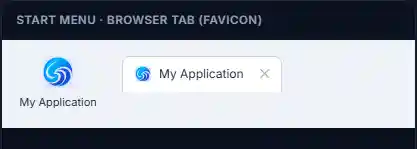
| Browser tab, bookmarks, history | 16, 32 | favicon.ico (multi-size) or PNG |
| Pinned tab / high-DPI tab | 48, 64 | PNG or the same .ico |
| iOS home screen | 180 | apple-touch-icon.png |
| Android / PWA | 192, 512 | PNG via web manifest |
| Scalable fallback | any | SVG (rel="icon" type="image/svg+xml") |
The .ico you export for a Windows app doubles as favicon.ico; add a PNG for Apple and a manifest for Android. The export dialog has the <link> snippet.
05 · Checklist
Before you ship
-
01
Draw 256, scale to 48/32/24/16 and retouch those by hand.
-
02
Export all seven sizes, 32-bit, 256 as PNG.
-
03
Preview on dark and light backgrounds.
-
04
Reference the file from your resource script / project file.
Try it as you read
The editor is free, needs no account, and exports a Windows-ready .ico with all seven sizes.