
How-to · 8 min read
How to change icons on Windows 11 and 10: folders, shortcuts, drives
Windows lets you give almost anything a custom icon — as long as you have a proper .ico file. Here is where each setting lives, how to make the file, and what to do when the icon refuses to change.
01 · Before you start
What you need: an .ico file in a permanent place
Two rules save most of the trouble.
Rule 1 — the file must be a real .ico. The Change Icon dialog for folders, shortcuts and drives lists .ico files and icons stored inside .exe, .dll and .icl files. It does not accept PNG, JPG or WebP, and renaming a PNG to .ico does not turn it into an icon: an .ico is a container with a directory and one bitmap per size, and Windows reads the directory, not the file extension.
Rule 2 — keep the file where it is. A custom folder or shortcut icon stores the path of the .ico, not a copy. Move or delete the file and the item silently goes back to its default icon. Create a folder for your icons first (for example C:\Users\you\Icons), and put every .ico there before you assign it.
Do not have an .ico yet? The next section takes about two minutes. Already have a PNG, JPG, WebP or SVG logo? You can convert it with the same tool.
02 · Make the icon
Create the .ico in your browser
Free, no signup, nothing to install.
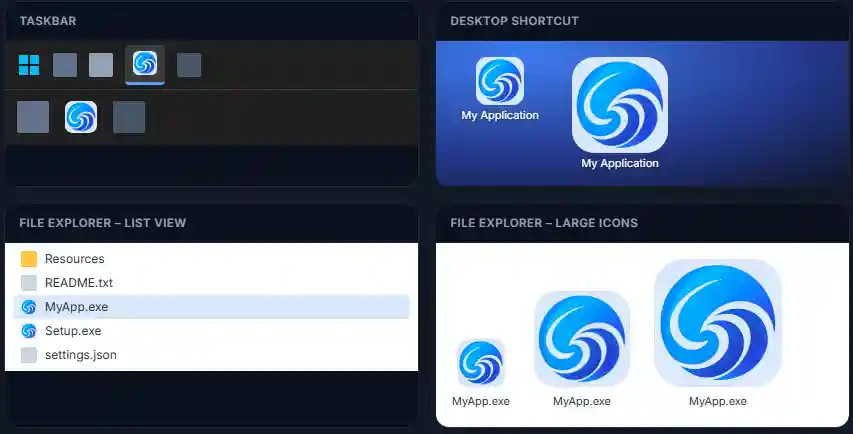
- Open the editor and click Import. Choose a square-ish PNG, JPG, WebP, GIF, BMP or SVG, or press Ctrl+V to paste an image from the clipboard. Prefer drawing? Pick the pencil and start on the 256 px canvas.
- Crop and keep all sizes ticked. The square frame decides what ends up in the icon; the seven size boxes (256 to 16 px) are ticked by default and should stay that way for folder and desktop icons.
- Look at the small sizes. Select 48, 32 and 16 px and tidy anything that turned to mush. Under the canvas, Background and Corners let you put the artwork on a coloured rounded tile — a quick way to make folder icons that stand out.
- Preview the icon on a taskbar and in Explorer views.
- Export: click Export, name the file (for example
projects) and press Download .ICO. Move it into your icons folder.
Details on the conversion are on the PNG to ICO page and the ICO converter page; the app icon guide has design tips that apply to folder icons too (one clear shape, strong contrast).
03 · Folders
Change a folder icon
- Right-click the folder and choose Properties. On Windows 11 it is under Show more options; you can also select the folder and press Alt+Enter.
- Open the Customize tab and click Change Icon… at the bottom.
- Click Browse…, select your .ico and press Open, then OK twice.
The change applies to that folder only, not to its sub-folders. Behind the scenes Windows writes a small hidden file called desktop.ini into the folder that points at your .ico — which is why the path rule matters. Restore Defaults on the same tab undoes it.
04 · Shortcuts
Change a shortcut icon
- Right-click the shortcut (on the desktop, in the Start folder, anywhere) and choose Properties.
- On the Shortcut tab click Change Icon…. If Windows warns that the file has no icons, accept — it then opens its own icon list.
- Browse… to your .ico, select it and confirm with OK and Apply.
Taskbar: a pinned program gets its icon from the shortcut it was pinned from. The reliable route is to unpin the app, change the icon on a shortcut to the program, then pin that shortcut (right-click it and choose Pin to taskbar). This works for shortcuts to programs; a shortcut to a folder cannot be pinned this way.
05 · More places
Desktop icons, drives, file types and apps
Each has its own setting; one has no built-in setting at all.
This PC, Recycle Bin and the other desktop icons
Open Settings → Personalization → Themes and click Desktop icon settings (under Related settings). Select the icon — This PC, User’s Files, Network, Recycle Bin (full or empty) — click Change Icon…, Browse… to your .ico and confirm. The same dialog has Restore Default. The Recycle Bin has two icons, empty and full: change both, or it will switch back and forth.
A drive icon
Windows does not offer a menu for drive icons. The usual method is a plain-text file named autorun.inf in the root of the drive, containing:
[autorun]
icon=drive.ico
Put drive.ico in the same root. This is the one case where the icon travels with the storage, which makes it useful for USB sticks and external disks. Windows no longer runs programs from autorun.inf, but the icon line is still honoured on most drives; if yours ignores it, a security policy is probably blocking the file.
Icons for a file type (all .txt files, all .psd files …)
Windows has no built-in setting for this. It is stored in the registry under the file type’s DefaultIcon key, and dedicated third-party tools exist to change it without editing the registry by hand. Back up before you experiment — and note that many programs reset their file-type icons when they update.
The icon of a program (.exe)
The icon of an .exe is part of the file itself, put there when it was built. Windows has no switch to replace it, and tools that rewrite the resources of someone else’s program can break it or trigger antivirus warnings. Use a shortcut with a custom icon instead (section 04). If you are the developer, the Export dialog gives you the snippet for C/C++, .NET, Electron and Tauri.
System-wide icon packs
Replacing Windows’ built-in icons everywhere is a different job from the per-item changes above: it involves third-party customisation tools or modifying system files, comes with its own risks, and may be undone by a Windows update. It is outside the scope of this guide.
06 · Troubleshooting
The icon will not change, or looks wrong
The old icon still shows
Windows caches icons. Restart File Explorer (Task Manager → Windows Explorer → Restart) or run ie4uinit.exe -show from a Command Prompt, then refresh the folder with F5. A sign-out and sign-in also works.
It shows a blank or generic icon
The file is probably not a real .ico (a renamed PNG), the path no longer exists, or the .ico sits on a network location that is not connected. Re-export the file and re-assign it.
It looks blurry
The .ico contains too few sizes. Re-export it with 256, 128, 64, 48, 32, 24 and 16 px. A large 256 px entry matters most in Explorer’s big-icon views.
The change vanished after a while
The .ico was moved or deleted, or a program reset it (some apps rewrite their shortcuts and file-type icons on update). Re-assign it from a permanent folder.
Questions
Changing Windows icons, answered
Can I use a PNG or JPG as a Windows icon?
Not directly. The Change Icon dialog for folders, shortcuts and drives wants an .ico file (or an icon inside an .exe, .dll or .icl). Convert the PNG first — PNG to ICO takes a minute. Renaming a .png to .ico does not work.
Why does my custom icon look blurry or too small?
Usually the .ico contains only one size, so Windows has to stretch it. Folders and desktop icons are shown at 48 px and up to 256 px, depending on the view and your display scaling. Export an .ico with 256, 128, 64, 48, 32, 24 and 16 px; see the icon sizes cheat sheet.
What happens if I move or delete the .ico afterwards?
The folder or shortcut falls back to its default icon. Windows stores the path to the file, not a copy of it, so put your icons in a permanent folder (for example C:\Users\you\Icons) before you assign them.
Can I change the icon of a .exe file itself?
Not with a built-in Windows setting. Windows reads an application’s icon from the resources compiled into the .exe. What you can do is create a shortcut to the program and give the shortcut your own icon. Developers set the icon at build time; the app icon guide shows how.
Does this work the same on Windows 10 and Windows 11?
The steps are the same; only the menus differ. On Windows 11 the right-click menu is shorter, so Properties may be under Show more options — or select the item and press Alt+Enter. The Change Icon dialog and the desktop icon settings page look the same on both.
How do I go back to the default icon?
For a folder: Properties, Customize tab, Restore Defaults. For a shortcut: Properties, Shortcut tab, Change Icon and pick the program’s own icon again (or recreate the shortcut). For desktop icons: Desktop icon settings, select the icon and click Restore Default.
Is it safe to use icons from the internet?
An .ico is just an image container, but be careful where you download it from and never run an “icon pack installer” you do not trust. Making your own icon in the browser, as described here, means you control the file.
Keep reading
More on Windows icons
Try it as you read
The editor is free, needs no account, and exports a Windows-ready .ico with all seven sizes.