
Free online converter
PNG to ICO converter — every Windows size in one file
Upload a PNG, JPG, SVG or WebP and download a Windows-ready .ico with 256, 128, 64, 48, 32, 24 and 16 px inside. Transparency preserved, nothing stored, no signup — and unlike a plain converter you can fix the tiny sizes by hand before you export.
How it works
Convert a PNG to ICO in three steps
About two minutes from upload to a finished icon. The same flow handles JPG, SVG, WebP, BMP, GIF and existing .ICO files.
-
 01
01Import your image
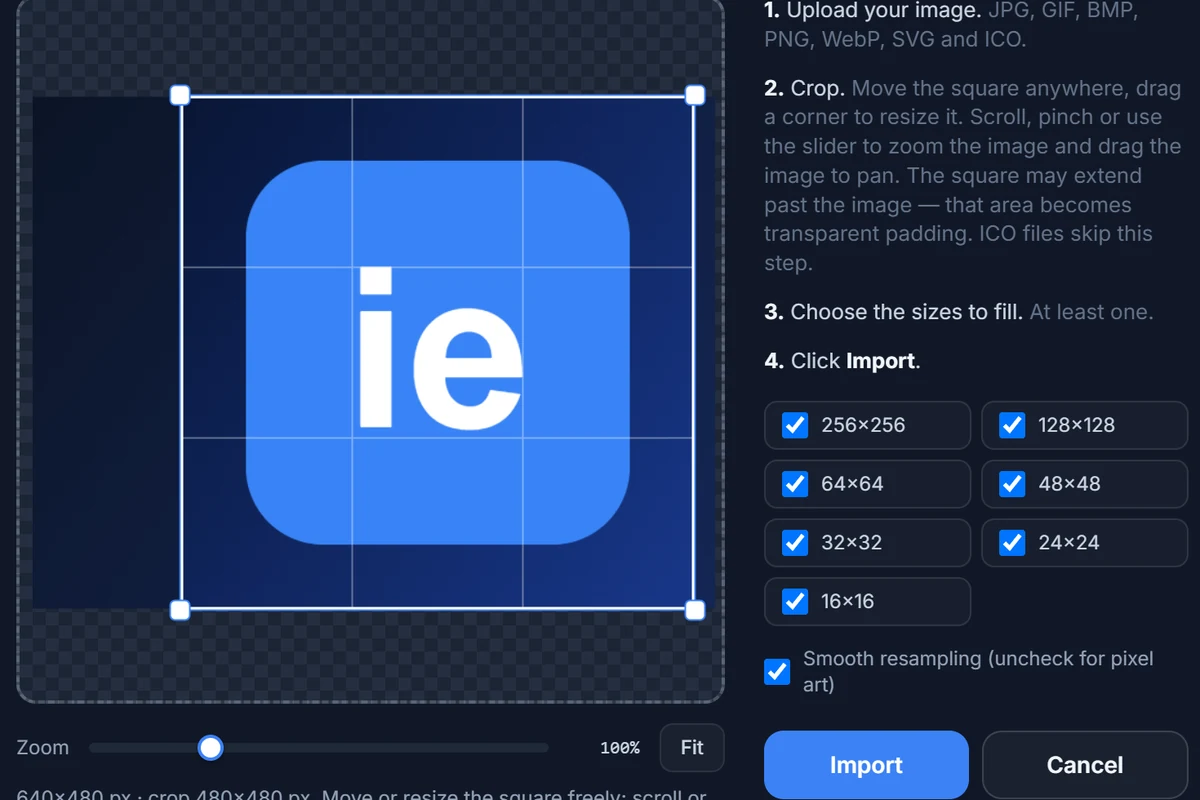
Click Import in the editor (or drop the file anywhere on the page). PNG, JPG, SVG, WebP, BMP and GIF up to 20 MB are accepted.
-
 02
02Crop and pick sizes
Drag the square frame over the part you want. Tick the sizes to generate — all seven are on by default — and click Import. Each size is resampled with a Lanczos filter.
-
 03
03Export the .ICO
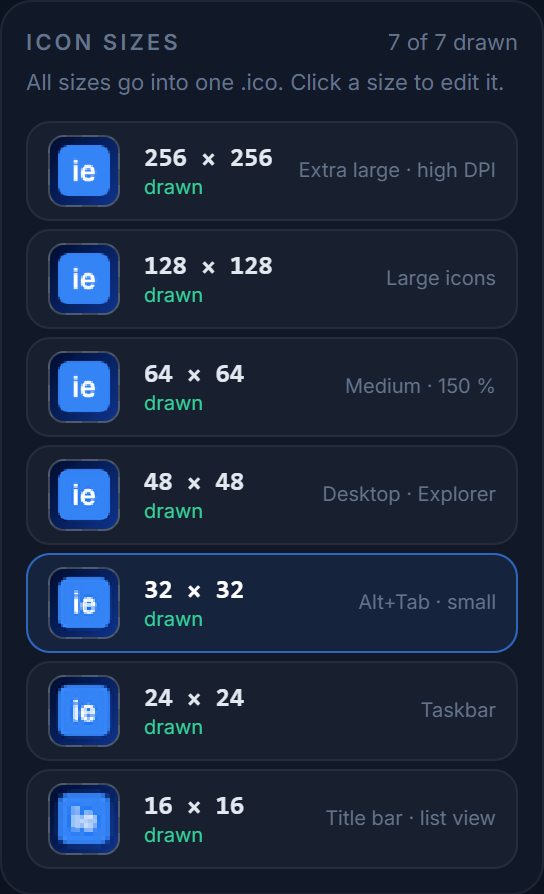
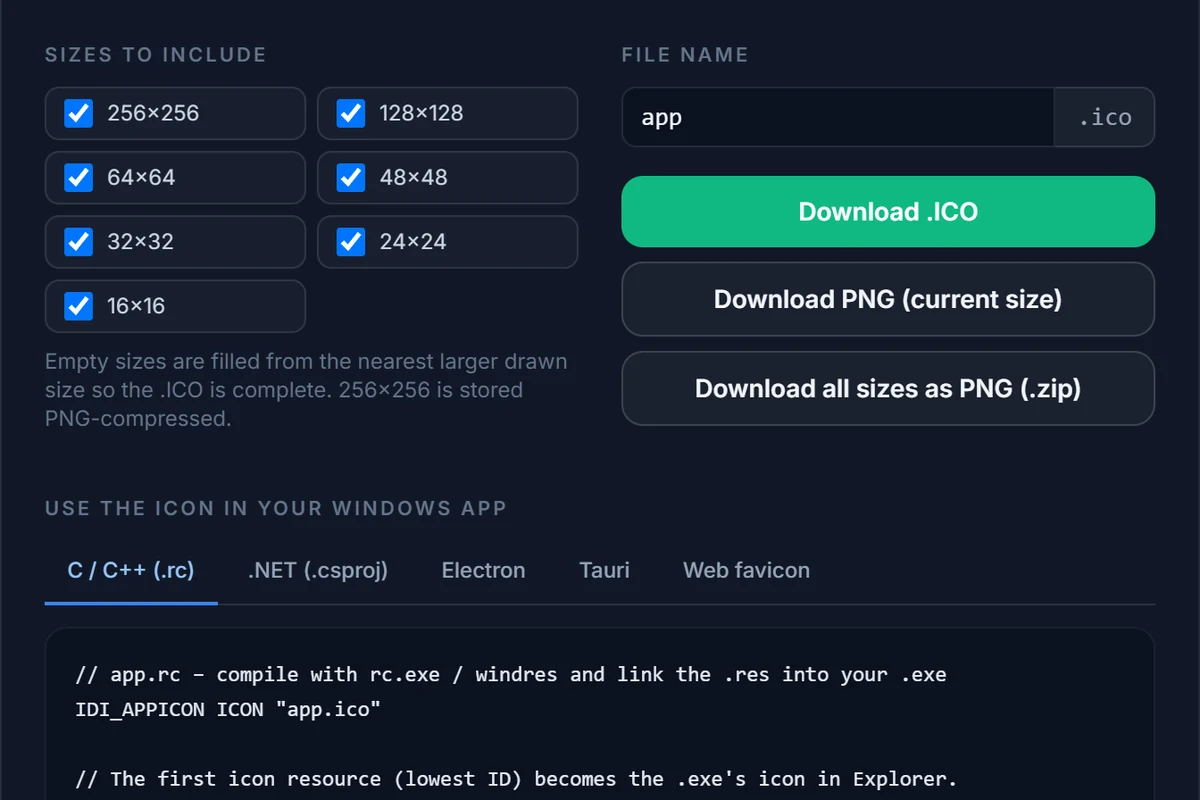
Check the 16 and 24 px versions on the pixel grid, fix a stray pixel if you like, then click Export and download one multi-size .ico — plus the snippet for your build.
Why not any converter?
A converter that is also an icon editor
Most PNG-to-ICO tools resample once and hand you a blurry 16-pixel version. IconEditor gives you a real multi-size document and the tools to make the small sizes look drawn, not shrunk.
Seven sizes, correctly encoded
A 256 px PNG-compressed entry plus 32-bit BMP entries with alpha for 128 to 16 px — the layout Windows Vista through 11 and every resource compiler expect.
Fix the small sizes by hand
Open the 16 or 24 px version on the pixel grid and sharpen an edge or drop a detail that turned to mush. A converter cannot do this; an editor can.
Preview on Windows first
See the result on the taskbar, the desktop, Explorer list and large-icon views and a browser tab before you download anything.
Transparent, private, free
Alpha is kept in every entry. Files are converted in memory and discarded — nothing is stored. No account, no watermark, no limit.
Formats
More than PNG in, more than ICO out
Everything ImageMagick can decode goes in; a multi-size .ICO, single PNGs or a ZIP of PNGs come out.
| Input | Notes | Output |
|---|---|---|
| PNG (incl. transparent, APNG first frame) | The usual case. 256 px or larger recommended. | .ICO with 256–16 px PNG per size ZIP of PNGs |
| JPG / JPEG | No alpha — erase the background in the editor or give it a colour and rounded corners. | |
| SVG | Rasterised at 1024 px, so vector logos stay crisp at every size. | |
| WebP · BMP · GIF · TIFF · AVIF · PSD | First frame / flattened. | |
| ICO · CUR | Existing icons open with every size in its own slot; missing sizes are filled from the largest. | |
| Drawn from scratch | Skip the upload and draw on the 256 px canvas. |
JPG to ICO
Photos and screenshots convert the same way; the crop frame makes them square. Because JPG has no transparency, use the Background bar under the canvas to give the icon a solid colour or rounded corners, or erase the backdrop with the eraser before exporting.
SVG to ICO
An SVG is rasterised at 1024 px on import and then downscaled, so the 256 px entry is as sharp as the vector. The 16 and 24 px versions still benefit from a minute of pixel clean-up — thin strokes that are fine at 256 px vanish at 16.
ICO to PNG
The reverse works too: import an existing .ico, pick a size and download it as a PNG, or all sizes as a ZIP of PNGs. The ICO to PNG page explains which sizes you can get and what happens to the ones the file does not contain.
PNG to favicon.ico
A favicon is a regular .ICO; tick only 16, 32 and 48 px when you export to keep the file small, then link it with <link rel="icon" href="/favicon.ico" sizes="any">. The favicon generator page covers the tags, the Apple touch icon and what Google looks for.
Other formats
Working from a WebP, GIF or BMP, or want the whole picture of formats in and out? See the ICO converter page. Wondering how to apply the finished file to a folder or shortcut? Change icons on Windows 11 and 10 walks through it.
Questions
PNG to ICO, explained
The things people ask before they trust a converter with their logo. More in the full FAQ.
Can I just rename a .png to .ico?
No. An .ICO file is a container with its own header and one bitmap per size; Windows reads the header, not the extension. A renamed PNG shows a blank or generic icon in Explorer and fails in a resource compiler. IconEditor writes a real ICO with a PNG-compressed 256 px entry and 32-bit BMP entries for the smaller sizes.
Which sizes does the .ICO contain after converting?
By default all seven that Windows uses: 256, 128, 64, 48, 32, 24 and 16 px. You can untick any size in the import dialog or in the export dialog. A complete Windows application icon needs at least 16, 24, 32, 48 and 256 px; 64 and 128 px cover 150–200 % display scaling.
Does the converter keep transparency?
Yes. Every size is 32-bit RGBA, so a transparent PNG becomes an icon with full 8-bit alpha in every entry. If you start from a JPG (which has no alpha) you can erase the background in the editor, or use the Background setting to composite a colour or rounded corners underneath.
What is the best PNG size to convert?
A square PNG of 256×256 px or larger, ideally 512 or 1024 px so the 256 px entry is downscaled rather than upscaled. Non-square images are fine: the import dialog shows a square crop frame, and anything outside the image becomes transparent padding.
Can I convert a PNG to a favicon.ico?
Yes. A favicon is the same .ICO format; the sizes browsers read are 16, 32 and 48 px, which are all included. Link it with <link rel="icon" href="/favicon.ico" sizes="any"> — the export dialog gives you that snippet. The icon sizes guide lists the extra PNG sizes for iOS and Android.
Is the converter free, and is my image stored?
Free for personal and commercial use, no account, no watermark, no limit. The file (up to 20 MB) is decoded and resampled in memory on our server and discarded immediately; nothing is written to disk. Your work-in-progress lives in your own browser.
Related
After you have your .ico
Convert your PNG now
The editor opens with the import dialog ready. Free, in your browser, nothing installed and nothing stored.